A saved search remembers your keywords and filters so you never have to rebuild them. Save the searches you run every week, then re-run any of them in a single click.
Save a search
- Run a search on the Search page (see how to search).
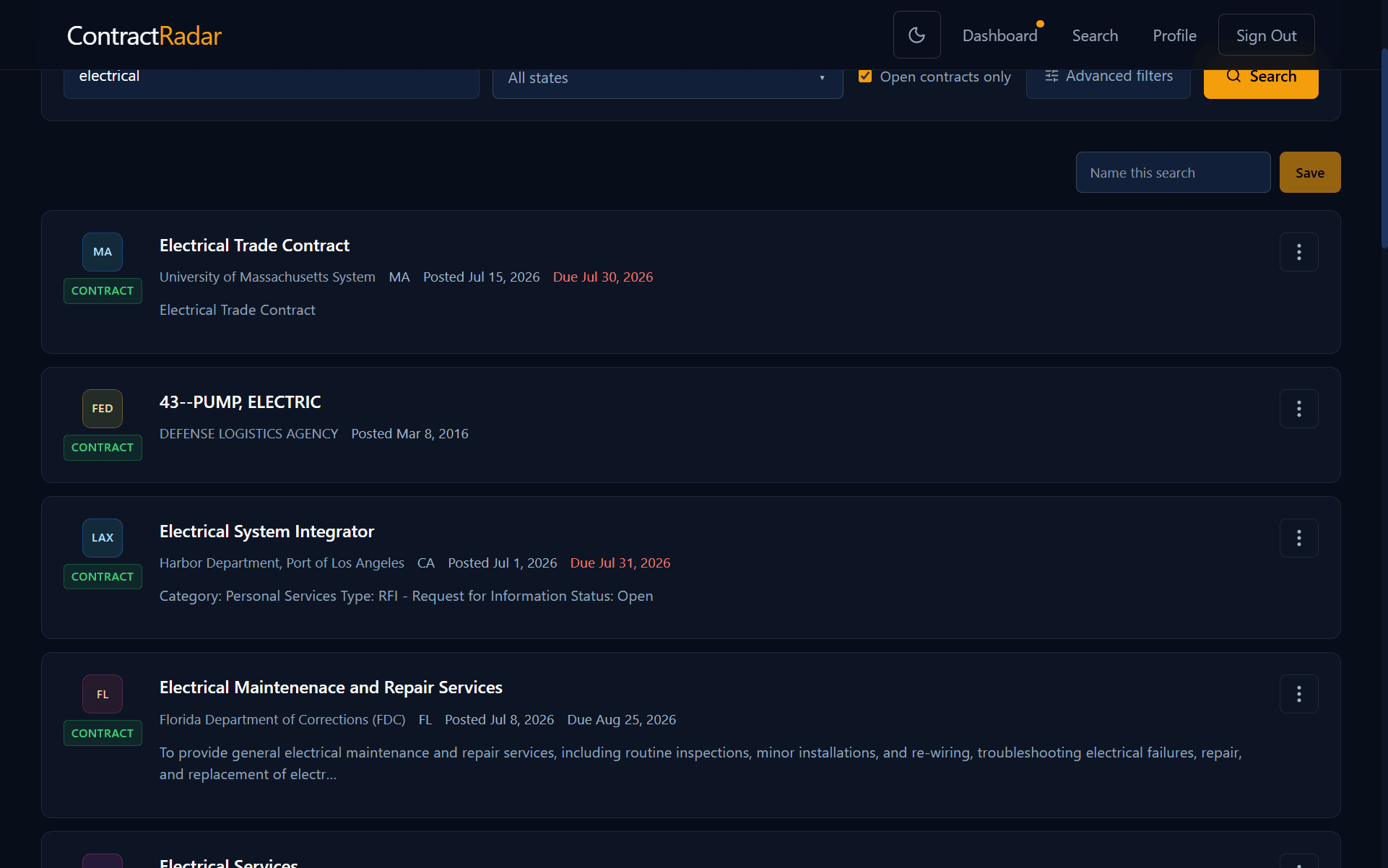
- With results on screen, click Save this search above them.
- Give it a name you’ll recognise — e.g. “Electrical — TX & NM” — and click Save.
Important — word it well
Find and re-run a saved search
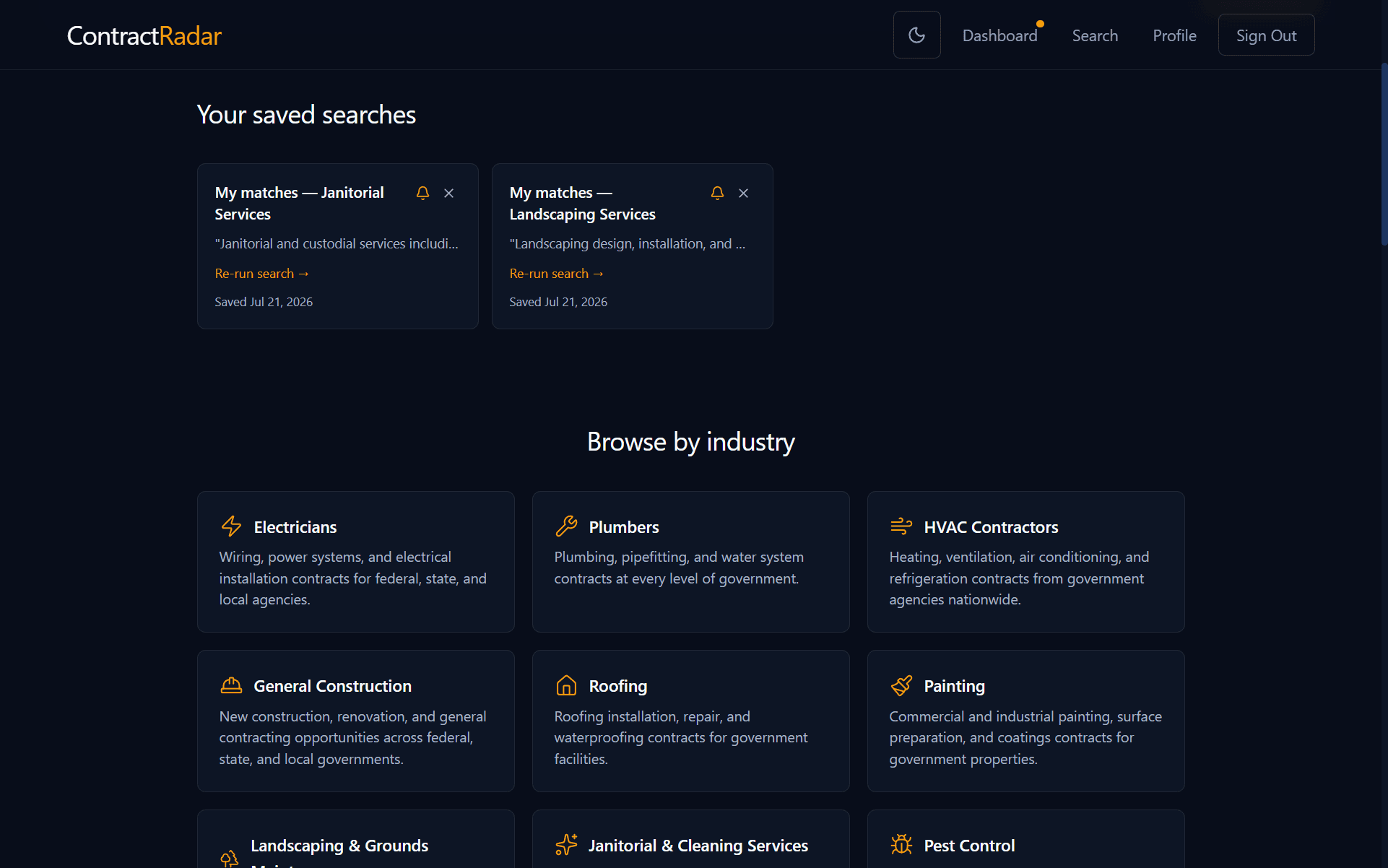
Your saved searches live in the Your saved searches section on your Dashboard, above your matches — collapsed by default, so click it to expand. Click a card’s title or Re-run search to load it on the Search page with every filter restored, including the Score range you had set — what the score means. To change it, re-run the search, adjust the Score range on the Search page, and save it again — the new range also applies to that search’s email alerts, so alerts always match what re-running the search shows you.
Saving an Exact words search
A search run in Exact words mode saves and alerts just like a Smart match one. Its email alerts then contain only new contracts whose title or description literally contains the words you saved — the Score range doesn’t apply to it, the same as when you run it. Saving the same words in both modes keeps two separate searches, each with its own alert, rather than merging into one — they can genuinely turn up different contracts.
Delete a saved search
Done with one? Click the trash icon on its card to remove it. Deleting a saved search also turns off its email alert.
Requires Pro
Want new matches emailed to you automatically? Turn on email alerts for any saved search.