Keep deadlines where you already work. Add contract due dates straight to your calendar, or export your matches to a spreadsheet to share or sort however you like.
Find the export buttons
- Go to your Dashboard.
- The Export CSV and Export .ics buttons sit on the right, just below the filter card and above your contracts. Each export covers whatever your current filters show, so filter first if you only want part of your list.
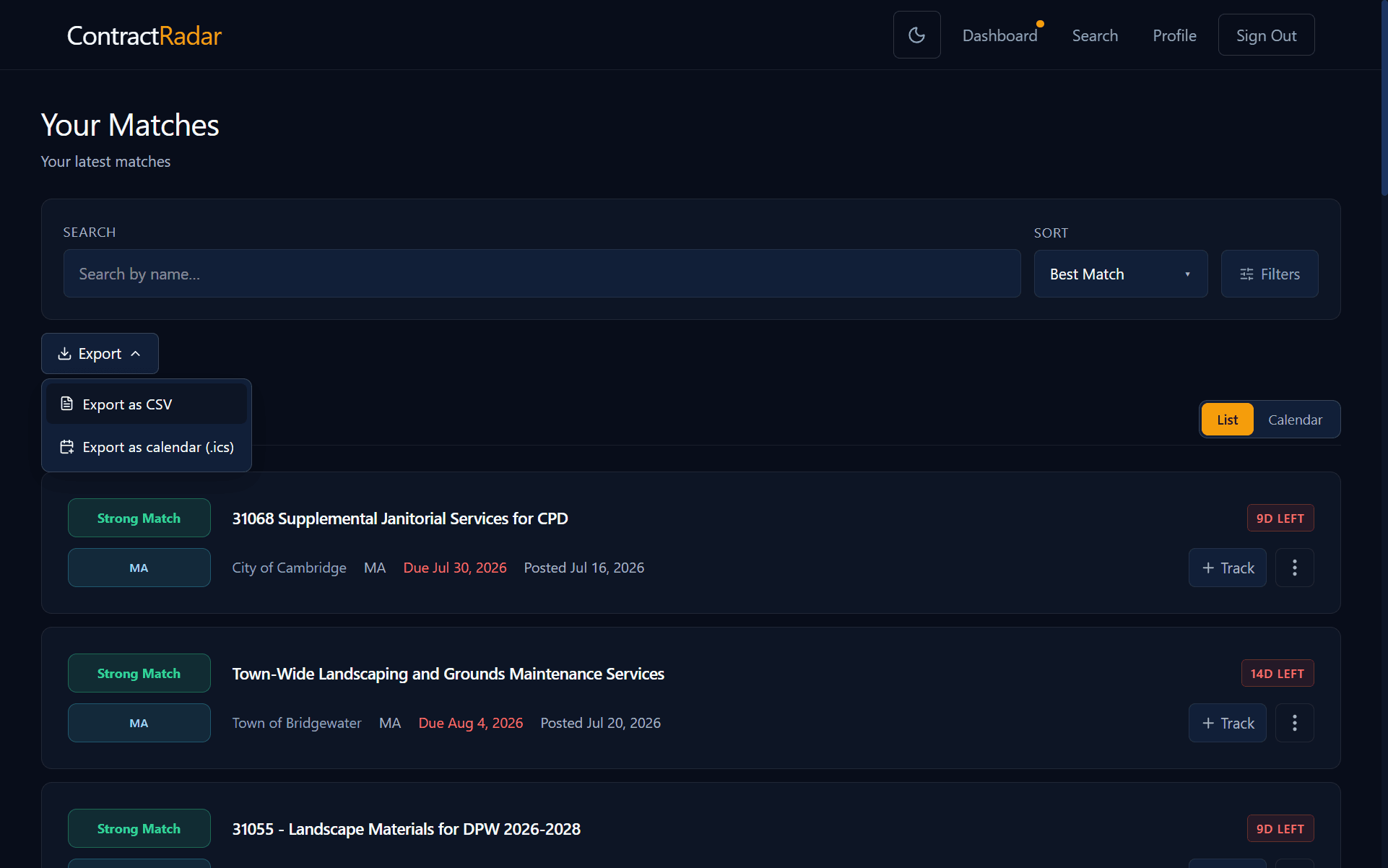
Add deadlines to your calendar (.ics)
Click Export .ics to download a calendar file of your contract deadlines. Open it in Google Calendar, Outlook, or Apple Calendar and every response deadline drops in as an event. You can also add a single contract’s deadline from its detail page.
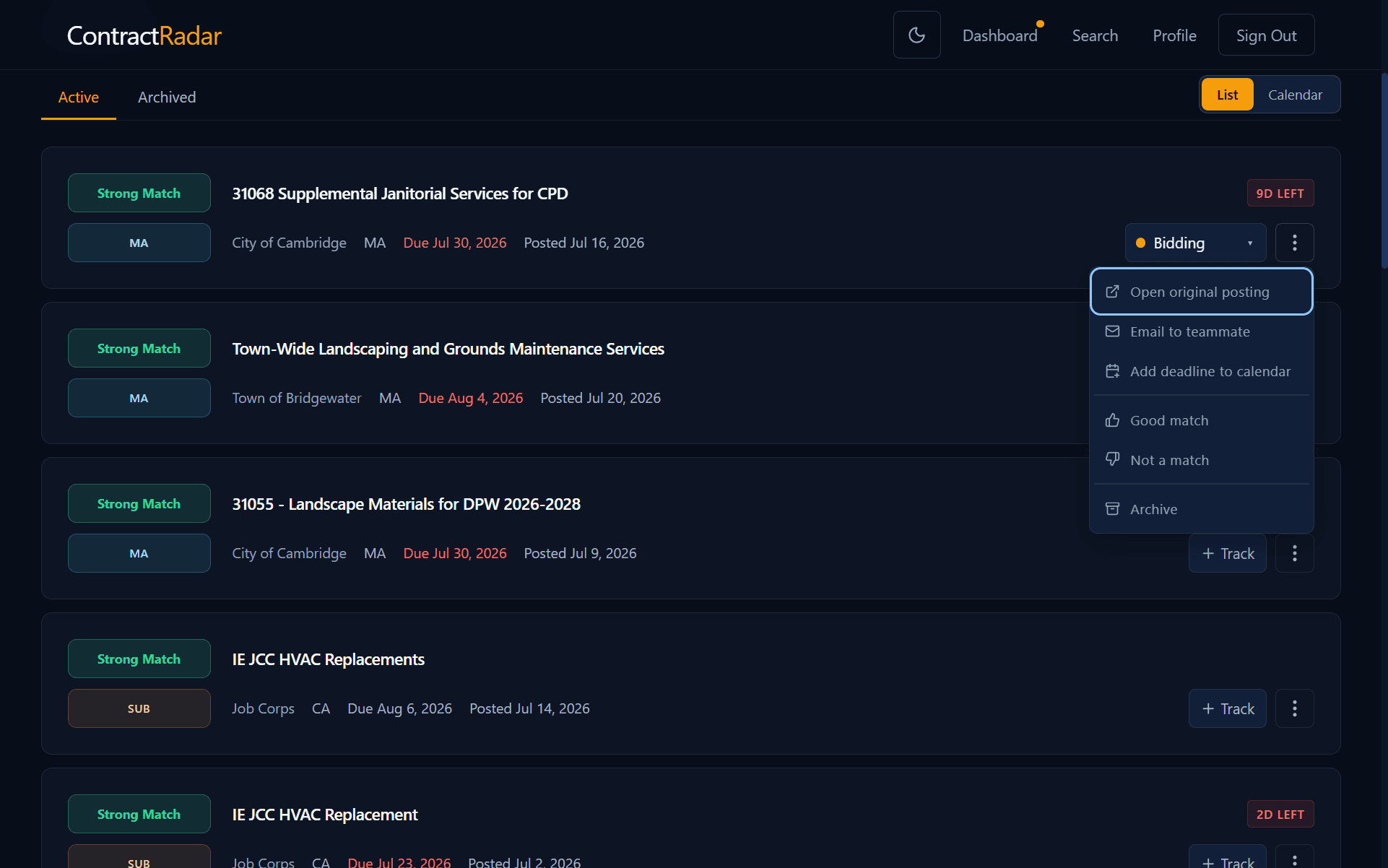
Export to a spreadsheet (CSV)
Click Export CSV to download your matches as a spreadsheet — open it in Excel, Google Sheets, or Numbers to sort, filter, or share with your team.
Requires Pro
Exports run off your dashboard matches, so they’re part of Pro. The export buttons appear once you have at least one contract in the current view.