Turn on alerts for a saved search and ContractRadar emails you when new contracts match — so you find out the morning a new opportunity is posted instead of remembering to check.
Turn on alerts for a saved search
- First, save a search that includes a keyword (alerts need a keyword to match on).
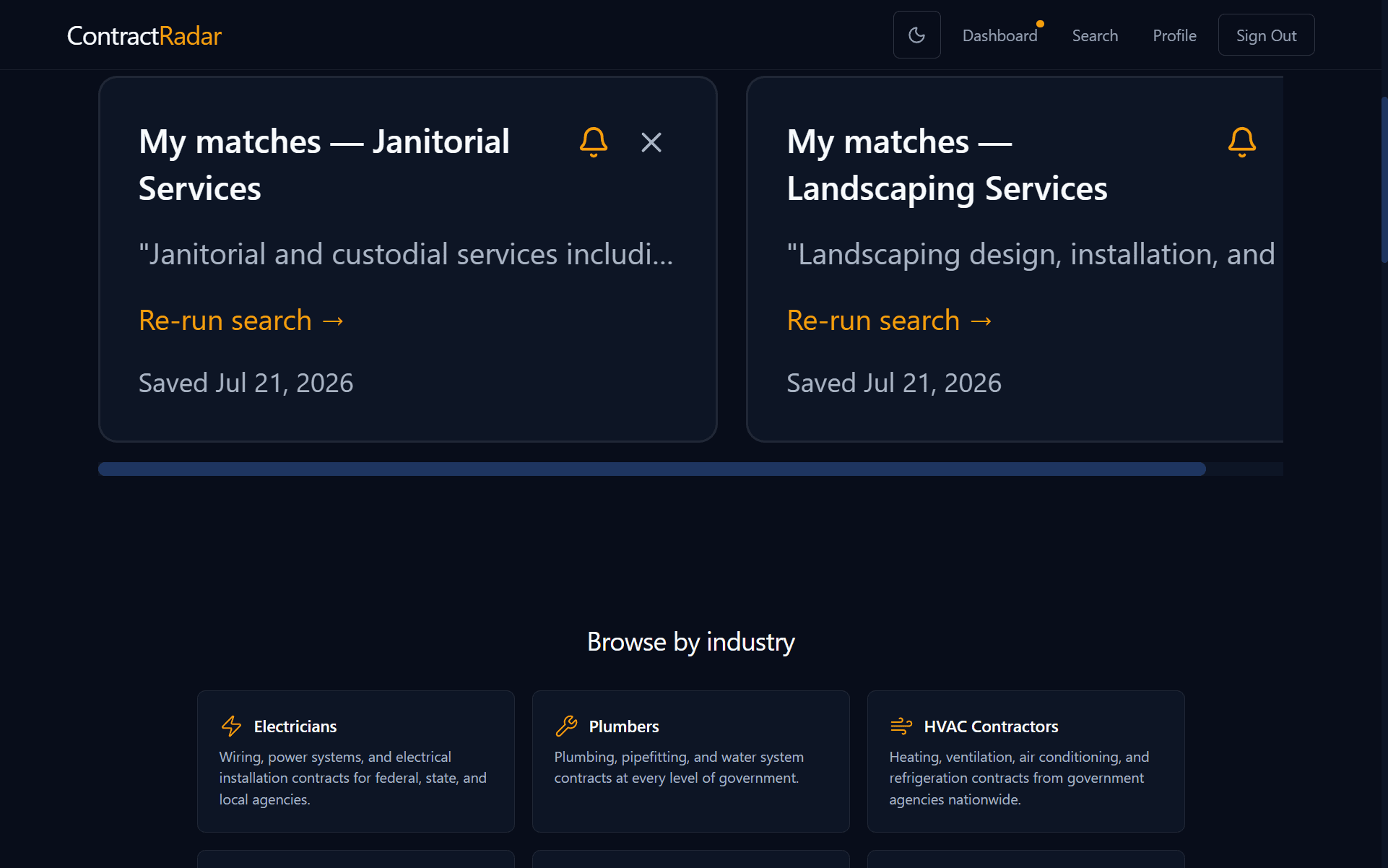
- On your Dashboard, expand the Your saved searches section and find its card.
- Click the bell icon on the card. A filled bell means alerts are on; click it again to turn them off.
What the emails look like
When new contracts match, you get one email listing them — title, type, and agency — with a link straight to your matches. No new matches, no email. You can see an example on the alerts page.
For a Smart match saved search, a contract matches when it clears the search’s own score range — the same one re-running the search applies. To change it, re-run the search, adjust the Score range on the Search page, and save it again — narrow it if a search is alerting on too many loose matches, or widen it to catch more of the fringe. An Exact words saved search has no score to clear — it alerts on every new contract whose title or description literally contains the words you saved.
Those matches are also saved to your Dashboard, so you can find them there any time. The email is just a heads-up — you don’t have to keep it, and nothing is lost if you miss one. Your matches wait for you on the dashboard either way.
Turning emails off
Every ContractRadar email has an Unsubscribe link at the bottom. One click stops all ContractRadar email — no login, no confirmation step. Your matches keep arriving on your Dashboard; only the email stops. Some mail apps, Gmail among them, also show their own Unsubscribe button at the top of the message, which does the same thing.
To turn emails back on, tick Email alerts in your profile. That switch is account-wide: while it is off, saved searches with the bell on keep matching but send you nothing, and ContractRadar says so on your dashboard. To stop emails for one search only, switch that search’s bell off instead.
Requires Pro
Important — word it well